Cheat During The Test Controls
PC and mobile bindings for sheets, Phone photos, inventory, and movement — plus why BETA prompts override fixed maps.
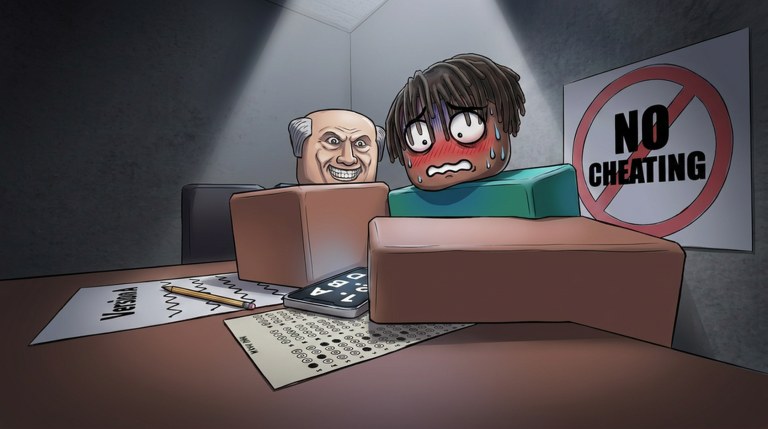
Bindings change; principles do not
Cheat During The Test is still a live BETA (since February 22, 2026). UI prompts, hotkey labels, and mobile buttons can shift between patches — especially around V2’s new rooms, teachers, and codes feature. This guide documents the community-stable actions players rely on, then tells you to trust the on-screen prompt when it disagrees with any wiki table.
If you have not sat a single exam yet, pair this page with Getting started and Exam mechanics.
Core actions every platform shares
Regardless of keyboard or touch:
- Sit / enter the desk so the exam UI can attach.
- Open the answer sheet — on PC this is widely bound to R.
- Read Version A or B on the paper before marking.
- Mark answers with the pencil / bubble UI.
- Equip and use the Phone during a safe window to photograph the sheet.
- Holster / hide gadgets before the teacher faces you.
- Recover Anxiety by facing forward and using the pencil.
- Submit before the timer hits zero.
- Open inventory / Shop between exams to spend Credits.
Those nine verbs are the game. Hotkeys are just shortcuts to them.
PC controls (community baseline)
Players on keyboard/mouse commonly report:
| Action | Typical binding / note |
|---|---|
| Open answer sheet | R |
| Move / look | Standard Roblox WASD + mouse |
| Phone photograph | Often Q or the Phone tool’s on-screen use |
| Equip Phone / gadgets | Number keys or backpack click |
| Interact / sit | Roblox proximity prompts (E or click) |
| Inventory | Backpack / \ style Roblox defaults unless remapped |
Critical caveat: some sessions show different prompt text after patches. If your client prints a button name, that name wins. Do not force Q when the UI clearly asks for another key.
Movement matters more than people admit. Sliding your camera across the whole room spikes Anxiety. Practice small peeks — or buy Smart Glasses so you need fewer head turns (game passes, gadgets tier).
Mobile controls
Touch players usually get:
- On-screen sheet / R-equivalent buttons when seated
- A Phone tool icon in the hotbar
- Tap-to-use for photographs once the Phone is equipped
- Virtual joystick movement and camera drag
Mobile stealth is harder because fat-finger camera pans look suspicious. Sit with your thumbs planned: one for brief camera checks, one for holster. Shorter Phone holds from better Phone tiers (phones) help mobile more than PC.
If a guide says “mash Q,” translate that to “activate the Phone use control your HUD shows.” Community notes cite Q often on PC; mobile almost always uses the tool button instead.
Mid-guide video
The video below shows a live classroom session so you can watch sheet opens, gadget pulls, and teacher reactions without inventing a keymap your build does not use.
Inventory and loadout controls
Open your backpack to equip Phones, glasses, watches, and snacks. Remember the progression rule many players learn the hard way: without Save Inventory Permanently (300R), inventory tends to last about 24 hours. Controls will not save a loadout the economy already deleted — see Game passes and Credits farming.
Between exams:
- Confirm the Phone you think you equipped is actually active.
- Do not leave a glowing tool selected while walking the aisle.
- Re-check after requeues; BETA can drop tools on weird disconnects even when paper progress saves.
Teacher, Snitch, and social inputs
There is no secret “I am innocent” key. Your inputs are the tell:
- Rapid camera spins = Anxiety climb
- Late holster clicks = catch windows
- Chat spam about answers = Snitch bait
Report actions belong to players running the Snitch fantasy (Anxiety & Snitches). You cannot keybind your way out of a classmate staring at your screen — reseat or shorten the glow.
Codes UI after V2
V2 added a codes feature. Look for a Codes / Gift style button in the lobby or HUD, then type strings carefully. Exact button placement moves; follow How to redeem and the Codes Hub. Failed codes are normal when lists rotate — do not spam inputs.
Why fixed control maps go stale
BETA reasons your notes go wrong:
- New classrooms change which prompts appear first
- ISS or alternate supervisors may use different interact flows
- Mobile vs console vs PC share Roblox defaults differently
- Creator patches can rebind photograph or sheet keys without a marketing post
Rule: screenshot your own prompt bar once per major update (November 2026 status, V2 notes). Update personal notes. Ignore anyone selling a “permanent 2025 keymap” PDF.
Practice routine for controls mastery
- Join a low-stakes server and open the sheet with R three times without marking.
- Equip Phone, photograph once during a safe window, holster immediately.
- Pencil until Anxiety drops.
- Open inventory and confirm tool order.
- Submit early once so the Assessment Complete flow feels familiar.
Only after those inputs are muscle memory should you chase Phone trick perfection or How to get 100 routes.
Common control mistakes
- Photographing while the sheet UI is closed
- Leaving the Phone equipped while turning to chat
- Confusing Roblox emote keys with gadget use
- Assuming mobile has a physical Q key
- Ignoring on-screen BETA prompts because a YouTube description disagreed
Related pages
Learn the verbs on your HUD. The wiki can name R and Q as community defaults — only your live client can confirm today’s binds.
Frequently Asked Questions
Quick answers about exams, Credits, gadgets, and teacher timing.
What key opens the answer sheet on PC?
Most players use R. If your prompt shows a different key after a patch, follow the live UI.
Is Q always the Phone photo button?
Community notes often cite Q on PC, but mobile uses on-screen tool buttons and BETA can remap — verify in-session.
Do mobile players get the same actions?
Yes: sheet, mark, Phone photo, holster, pencil recovery, submit. Only the touch layout differs.
Why do control guides go outdated?
The game is BETA. Prompts and room flows change; on-screen labels override any static table.
Where do I redeem codes in the UI?
Look for a Codes or Gift style button after V2, then follow How to redeem.